Guide · Mac
A video as your
Mac wallpaper.
macOS can’t set a video as your wallpaper: its settings take pictures, not films. An app can. In Seasill it is three steps (Add, choose the video, Set as wallpaper), and your own videos are never limited or watermarked, even on Free.
The short answer.
No setting in macOS 26 plays a video of yours as the wallpaper. System Settings › Wallpaper takes a photo, an image file, a folder or a Photos album; the only moving wallpapers are Apple’s aerials, and they stop when you unlock.
- Free and open source: Phosphene adds any video to System Settings › Wallpaper.
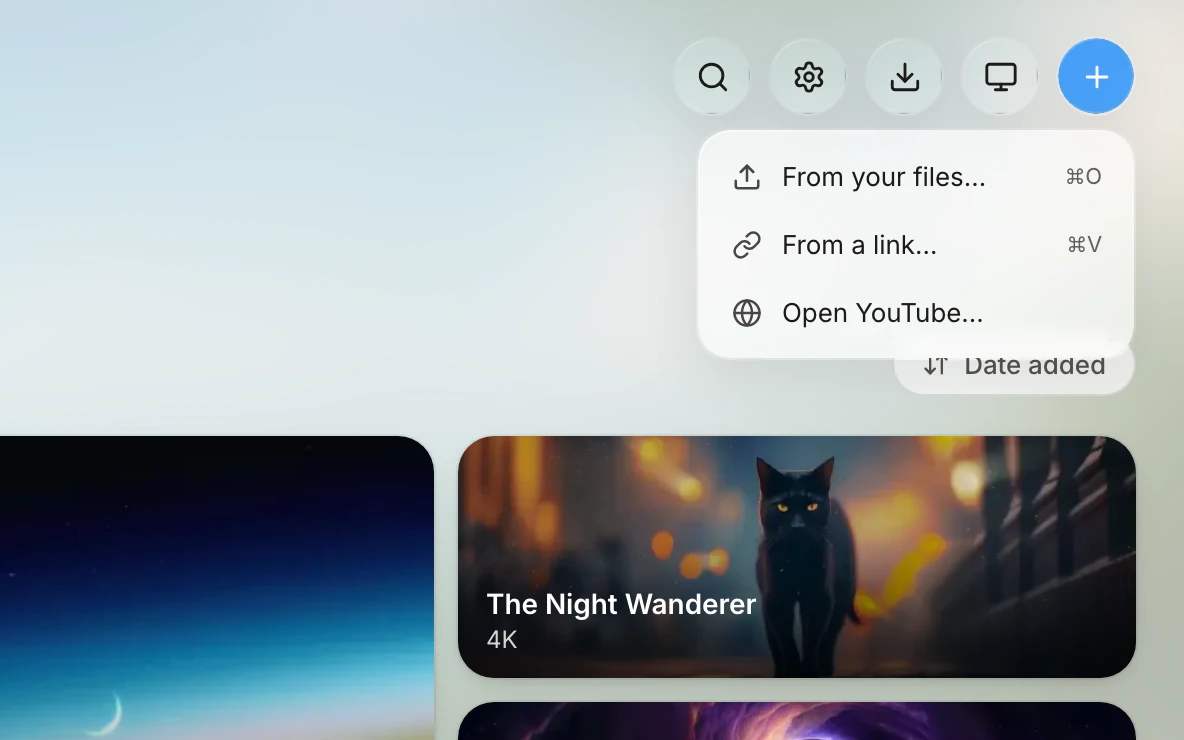
- With Seasill: Add › From your files…, choose the video, then Set as wallpaper. mp4, mov and m4v play as they are; webm, mkv and avi are converted.
- On Seasill’s Free plan your own videos are never limited and never carry a mark. The limits of Free apply only to wallpapers from the catalogue.
What macOS offers.
macOS 26 Tahoe lets you add “a photo from your Photos library”, an image file, a folder from the Finder, or an album, and shows it as a still picture. It has no place for a video.
Its moving wallpapers are the aerials: Apple’s own films of landscapes, cities, the sea and the Earth, which move while you lock or unlock the Mac and while they play as the screen saver, then hold a still frame. You can’t swap in a film of your own. For the whole picture, see live wallpaper on a Mac.
Source, checked on 28 September 2026: Apple, “Change your wallpaper on Mac” (macOS Tahoe 26).
Step by step, with Seasill.
- Get Seasill.
It runs on macOS 26 or later on Apple silicon. The first public build isn’t published yet; the waitlist hears first.
- Choose Seasill once for each display.
In System Settings › Wallpaper, pick any Seasill wallpaper. From then on Seasill draws that display. If you skip this, Seasill tells you, with the way there.
- Add your video.
Click Add, the + at the top right, and choose From your files… (⌘O). Or drag the file onto Seasill’s window.
- Let it settle into your Library.
An mp4, mov or m4v is ready at once. A webm, mkv or avi is converted into a file the Mac’s wallpaper system plays; its progress shows under Activity, the arrow at the top right.
- Set it.
Right-click the video in your Library and choose Set as wallpaper, or select it and press Return. With several displays, choose one by name or Set on every display.
- Frame it, if you like.
Displays, the screen button at the top right, sets how it fills each display: Fill, Fit, Stretch, Centre, or Crop by hand.
A video that looks right on the desktop.
- Mind the shape. Most laptop screens are a little taller than a 16:9 video, so Fill trims a sliver from the sides and Fit shows all of it with thin bands. A wide ultrawide display trims the top and bottom instead.
- Match the size, not more. A clip at your display’s resolution looks sharp. Beyond that you are asking the Mac to decode pixels you can’t see.
- Make it loop. A clip that ends where it began repeats without a jump. Ten to thirty seconds of something slow is plenty.
- Prefer H.264 or HEVC. In an mp4 or mov, the Mac plays them as they are. VP9 and AV1 are converted to HEVC when you add them.
- Keep it calm behind work. Slow, even movement sits behind your windows; fast cuts pull the eye every time they change.
When it won’t play.
“Seasill isn’t your wallpaper yet.”
That display hasn’t been handed to Seasill. Open System Settings › Wallpaper and choose any Seasill wallpaper for it, once. Seasill’s Settings has a shortcut: Displays › Which displays Seasill drives › Open.
The file won’t add.
Seasill takes mp4, mov, m4v, webm, mkv and avi, and pictures. When something can’t be used, it says which file and why, rather than failing quietly.
Only one display moves.
On the Free plan, one display plays live and the others hold a still of their wallpaper. The paid plans play every display.
It stopped moving.
Look in Settings › Playback: Pause when covered by windows and Play only on the lock screen both keep the desktop still on purpose. When playback pauses, Seasill shows the reason.
The desktop turned grey, or stopped changing.
Settings › Help › Help & troubleshooting has Restart the wallpaper agent, which restarts the part of macOS that draws wallpapers.
Other apps that do this.
Phosphene Free · open source (MIT)
Any video on the desktop and the lock screen, on macOS 26 or later. Seasill grew from it: its Mac wallpaper extension is Phosphene’s work, by kageroumado.
Checked on 28 September 2026: github.com/kageroumado/phospheneBackdrop $1.99 a month, $14.99 a year, or $29.99 once
Live wallpapers from Cindori; its free trial keeps up to three, with a watermark.
Checked on 28 September 2026: cindori.com/store/backdrop and cindori.com/backdropWallper From $14.99 once · 7-day trial
4K video wallpapers for the desktop and the lock screen, for macOS 14.6 Sonoma through macOS 26.
Checked on 28 September 2026: wallper.appWhat you need for Seasill.
- Mac
- macOS 26 Tahoe or later, on Apple silicon.
- Your videos
- Never limited, never marked, on every plan, Free included.
- Free
- One computer, one live display, and five catalogue wallpapers at a time at up to 1080p, with a small mark.
- Paid
- Seasill, $29 a year for one computer; Seasill Pro, $59 a year for three. Both start with a 7-day free trial. Pricing
Questions.
Can I set a video as my Mac wallpaper without an app?
No. In macOS 26, System Settings › Wallpaper accepts a photo, an image file, a folder or a Photos album, but not a video. The only moving wallpapers built in are Apple’s aerials, which move as you lock or unlock and then hold still.
Will my own video carry a watermark on Seasill’s Free plan?
Never. The small mark only appears on wallpapers from Seasill’s catalogue, on the Free plan. Your own videos are never marked and never limited, on any plan.
Which video files work?
mp4, mov and m4v play as they are. webm, mkv and avi are converted into a file the Mac plays when you add them. Pictures and GIFs become wallpapers too.
Can I use a video from YouTube?
From a link takes a link to a video file, and YouTube links too. Seasill says plainly that downloading from YouTube is against YouTube’s terms for most videos: add only what you have the right to use.
Does the video show on the lock screen too?
Yes. Seasill works through macOS’s own wallpaper system, the one Apple’s aerials use, so the lock screen shows your wallpaper as well as the desktop.
Hear the day it’s out.
Seasill for the Mac is being signed for release. Leave your address and we will write when it is ready to download; nothing is added until you confirm.