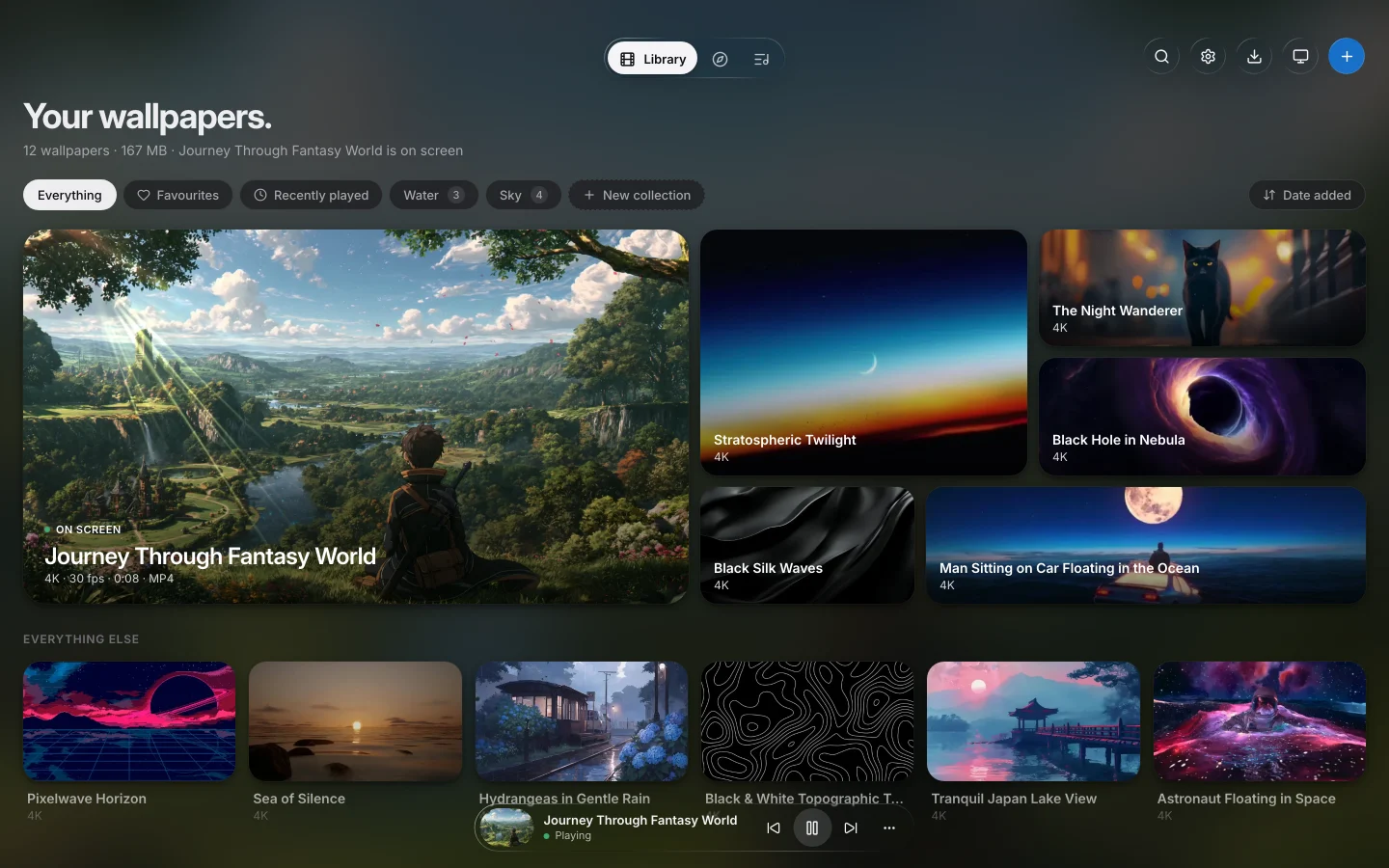
Download

Get Seasill.

For the Mac and for Windows. The Free plan has no time limit; Seasill and Seasill Pro each begin with a seven-day free trial.

macOS

Version 0.3.0

Not published yet. The first release will be signed before it is.

Download for Mac — soon
Requires
macOS 26 or later, on Apple silicon.
First open
macOS asks once before Seasill may use the system’s wallpaper folder, where your library lives.
Plays
mp4, mov and m4v. Takes webm, mkv and avi too.
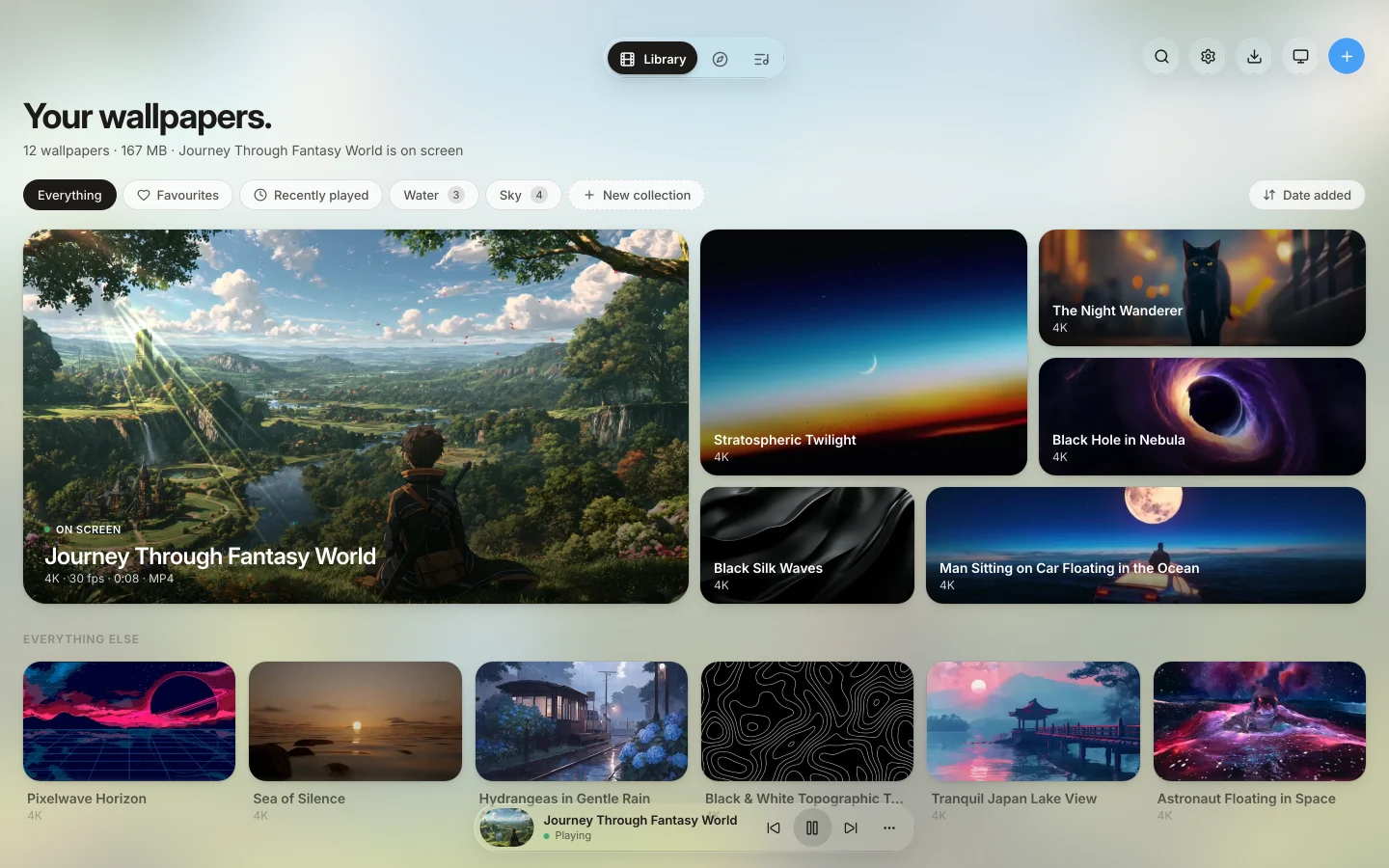
Windows

Version 0.3.0

Not published yet. The first release will be signed before it is.

Download for Windows — soon
Requires
Windows 11, or Windows 10 version 2004 or later.
Setup
Asks once for administrator permission: it installs for everyone on the computer, with the service that plays the lock screen.
Also
One wallpaper across all your displays, and the wallpaper live on the lock screen.

After the download

Three stepsto a view.

The same Seasill on both, set up the way each system asks for it. Getting started goes further.

  1. 01

    Open Seasill

    macOS asks once before Seasill may use the system’s wallpaper folder, where your library lives.

  2. 02

    Choose Seasill once for each display

    In System Settings › Wallpaper, pick any Seasill wallpaper. That hands the display to Seasill; you only do it once.

  3. 03

    Set a wallpaper

    In your Library, right-click a wallpaper and choose Set as wallpaper, or select it and press Return.

  1. 01

    Run setup

    It asks once for administrator permission: it installs for everyone on the computer, with the service that plays the lock screen.

  2. 02

    Find your view

    Open Browse and search for a wallpaper, or explore a category. The catalogue and your own videos live together in one place.

  3. 03

    Put it on your desktop

    Choose a wallpaper from your library and set it on a display. Your desktop becomes the view, behind your icons and windows.

Questions

Before youinstall.

The questions people hit first. Everything else is in Help & support.

Getting started

Do I need an account?

Not for your own videos: they play without one, within Free’s limits. Saving wallpapers from the catalogue, and using Seasill or Seasill Pro, needs a Seasill account: an email address and a password. You can make one on seasill.com; the Free plan costs nothing.

I set a wallpaper and nothing changed. Mac

On the Mac the system plays the wallpaper, so it has to be chosen once: open System Settings › Wallpaper and pick any Seasill wallpaper. From then on Seasill switches wallpapers itself.

If Seasill says it “isn’t your wallpaper yet” for one display, choose it for that display too.

It asks for access to a folder. Mac

The wallpaper library lives inside the system’s own wallpaper container, and macOS asks once before an app may use it. Seasill reads and writes only its own library there.

Windows shows a blue “protected your PC” window. Windows

SmartScreen can warn about new software until enough people have installed it. Download setup only from seasill.com; then choose More info, and Run anyway.

Releases are not published yet; when they are, the signed installers are offered here. Your library stays on your computer, and the app talks to Seasill only to check your plan and to load the catalogue. Privacy has the detail.